
Hot Deploy beta
INFO
Hot deployment is complex and requires a lot of compatibility. If this project helps you save development time, you might as well click 

1. What is hot deployment
The traditional deployment process is generally submit code->pull code->package->deploy->restart project before the written code can take effect.
Hot deployment can skip this tedious process. After the developer modifies the code, there is no need to manually trigger packaging or restart the service. The application can load the new logic and run in seconds, greatly shortening the feedback cycle.
Hot deployment is based on hot reload. Hot reload only supports local environment, while hot deployment allows remote applications to be hot reloaded.
2. Enable hot deployment
TIP
Hot deployment requires a specific JDK to take effect. Please refer to JDK Installation to complete JDK initialization.
Hot deployment requires downloading debug-tools-agent.jar
https://download.debug-tools.cc/debug-tools-agent.jargit clone https://github.com/future0923/debug-tools.git
cd debug-tools
# Currently, maven packaging needs to be built using the `java17+` version.
mvn clean install -T 2C -Dmaven.test.skip=true
# In the dist directory
# debug-tools-agent.jar remote agent packagehttps://github.com/future0923/debug-tools/releaseshttps://gitee.com/future94/debug-tools/releases2.1 Add JVM parameters
[Java 8] Add the following JVM parameters when starting.
-XXaltjvm=dcevm -javaagent:${agentPath}/debug-tools-agent.jar=${conf}[Java 11] Add the following JVM parameters when starting.
-javaagent:${agentPath}/debug-tools-agent.jar=${conf} --add-opens java.base/java.lang=ALL-UNNAMED --add-opens java.base/jdk.internal.loader=ALL-UNNAMED --add-opens java.base/java.io=ALL-UNNAMED --add-opens java.desktop/java.beans=ALL-UNNAMED --add-opens java.desktop/com.sun.beans=ALL-UNNAMED --add-opens java.desktop/com.sun.beans.introspect=ALL-UNNAMED --add-opens java.desktop/com.sun.beans.util=ALL-UNNAMED --add-opens java.base/sun.security.action=ALL-UNNAMED --add-opens java.base/java.lang.reflect=ALL-UNNAMED --add-opens java.base/java.net=ALL-UNNAMED[Java 17/21] Add the following JVM parameters when starting.
-XX:+AllowEnhancedClassRedefinition -javaagent:${agentPath}/debug-tools-agent.jar=${conf} --add-opens java.base/java.lang=ALL-UNNAMED --add-opens java.base/jdk.internal.loader=ALL-UNNAMED --add-opens java.base/java.io=ALL-UNNAMED --add-opens java.desktop/java.beans=ALL-UNNAMED --add-opens java.desktop/com.sun.beans=ALL-UNNAMED --add-opens java.desktop/com.sun.beans.introspect=ALL-UNNAMED --add-opens java.desktop/com.sun.beans.util=ALL-UNNAMED --add-opens java.base/sun.security.action=ALL-UNNAMED --add-opens java.base/java.lang.reflect=ALL-UNNAMED --add-opens java.base/java.net=ALL-UNNAMEDagentPathis the path of debug-tools-agent.jarconfis the configuration information passed to the agent, in the format ofkey1=value1,key2=value2
2.2 Optional configuration
| Optional key | Meaning | Value | Example |
|---|---|---|---|
| applicationName | Application name | The name of the application, which can be obtained automatically without passing | DebugTools |
| hotswap | Whether to enable hot reload/hot deployment | true: Enable false: Disable | true |
| autoHotswap | Watch compiled class files and automatically reload them; configurable through Agent arguments from 5.3.0, disabled by default | true / false | true |
| server | Whether to start the server for client connections | true: Enable false: Disable | true |
| tcpPort | TCP port to listen to (valid only when server=true) | Available ports | 12345 |
| httpPort | HTTP port to listen to (valid only when server=true) | Available ports | 22222 |
| printSql | Whether to print the executed SQL statement | true: Enable false: Disable | true |
| ignoreStaticFieldPath | Which static configuration paths are ignored during hot reload | Configuration file address | /etc/debug-tools/conf/debug-tools-ignore.conf |
| propertiesFilePath | External configuration file path | Configuration file address | /etc/debug-tools/conf/debug-tools-agent.properties |
propertiesFilePath configuration
| key | meaning | default value |
|---|---|---|
| applicationName | Application name (same as above) | Automatically obtained according to rules |
| hotswap | whether to enable hot reload/hot deployment (same as above) | true |
| server | whether to start the server for client connection (same as above) | true |
| tcpPort | TCP port to listen on (valid only when server=true) (same as above) | default, start from 12345 to find available ports |
| httpPort | HTTP port to listen on (valid only when server=true) (same as above) | default, start from 22222 to find available ports |
| lombokJarPath | lombok.jar path, if lombok is used during remote dynamic compilation, it needs to be specified to compile (same as above) | - |
| printSql | whether to print the executed SQL statement | false |
| includedClassLoaderPatterns | ClassLoader to initialize hot reload/hot deployment. Only one of the excludedClassLoaderPatterns can be configured at the same time | - |
| excludedClassLoaderPatterns | The ClassLoader to be excluded from initialization reloading/hot deployment. Only one can be configured at the same time with includedClassLoaderPatterns | - |
| pluginPackages | Scan plugins written on other paths, multiple paths are separated by commas | - |
| extraClasspath | MacOS/Linux loads extended class file path | /var/tmp/debug-tools/classes |
| extraClasspathWin | Windows loads extended class file path | c:/var/tmp/debug-tools/classes |
| watchResources | MacOS/Linux monitor resource path | /var/tmp/debug-tools/resources |
| watchResourcesWin | Windows monitor resource path | c:/var/tmp/debug-tools/resources |
| spring.basePackagePrefix | Spring base package prefix, multiple paths are separated by commas | - |
| disabledPlugins | Disabled plugins, multiple commas are separated | - |
| autoHotswap | Whether to automatically hot reload. Reloads class definitions in a running application after watching for changed class files in the ClassLoader's resources path. It uses the Java Instrumentation API to reload class bytecode. | false |
| autoHotswap.port | JPDA connection port, listens for changed files and performs hot reload, you need to specify the JPDA port when starting. | - |
default config file:
applicationName=
hotswap=true
server=true
tcpPort=
httpPort=
printSql=false
includedClassLoaderPatterns=
excludedClassLoaderPatterns=
pluginPackages=
extraClasspath=/var/tmp/debug-tools/classes
extraClasspathWin=c:/var/tmp/debug-tools/classes
watchResources=/var/tmp/debug-tools/resources
watchResourcesWin=c:/var/tmp/debug-tools/resources
lombokJarPath=
spring.basePackagePrefix=
disabledPlugins=
autoHotswap=false
autoHotswap.port=
3. Connecting to a remote service
The remote application must have loaded debug-tools-agent.jar at startup, and server=true must be enabled.
- If no ports are configured explicitly, the Agent starts searching for an available
TCPport from12345and an availableHTTPport from22222. Use the actual ports printed in the application console. - If
tcpPortandhttpPortare configured, use those actual configured ports when connecting.
Open the DebugTools tool window in IDEA and go to Connection Management.
Click  in the toolbar to open the remote target dialog. This is used to connect to a remote application where the DebugTools server has already started.
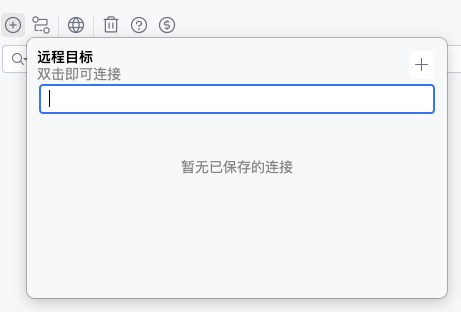
When there is no saved history, click  to create a remote target.
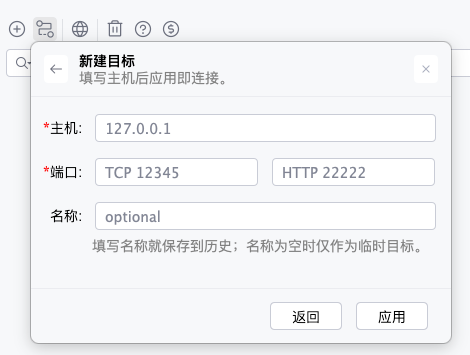
Fill in these fields:
Host: the address of the remote application machine. If empty,127.0.0.1is used by default.Port: fill in theTCPport andHTTPport. The default values are12345and22222.Name: optional. If filled in, the target is saved to the history list. If left empty, it is used only as a temporary one-time target.
After filling in the fields, click Apply. The plugin first gets the remote application name through the HTTP port, then establishes the connection through the TCP port. After the connection succeeds, the dialog closes and a remote connection card is added to the connection management list.
TIP
Before connecting remotely, make sure the target application has started the DebugTools server and that the current machine can access the target TCP and HTTP ports. Otherwise, the plugin may report connection failure or fail to get the application name.
Manage Remote History
If a Name was filled in when creating a remote target, it appears in the history list the next time the remote target dialog is opened.
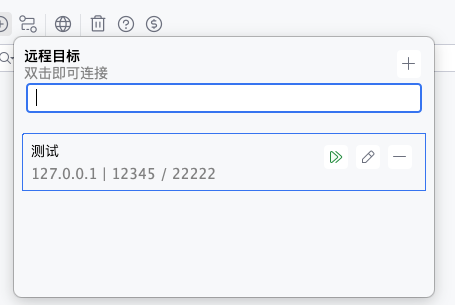
The history list supports:
- Filtering by name or host in the search box.
- Double-clicking a target to connect directly.
- Clicking
 to start a connection.
 - Clicking
 to modify the host, ports, or name.
 - Clicking
 to delete the history record.
After editing a history target, click Apply to connect with the latest configuration. If the name is changed, the history record under the old name is replaced by the new one.
After the connection succeeds, expand the connection card and make sure the ClassLoader is selected for the target classes you want to hot deploy. Multi-file hot deployment and single-file remote compilation both send requests based on this connection.
WARNING
Hot deployment requests use the ClassLoader currently selected on the connection card. If the target application has multiple class loaders, select the class loader that actually loads the business classes before deploying. Selecting the wrong one may cause class-not-found errors or a successful deployment that does not take effect.
4. Using hot deployment
4.1 Multiple files
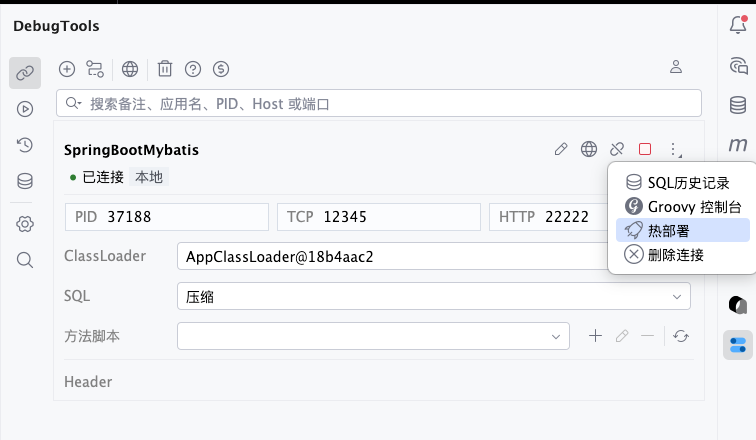
In Connection Management, make sure the target application is attached and the default ClassLoader is selected.
Open the connection card's More menu, then click  to open the hot deployment window.
The plugin first saves unsaved files in IDEA, then loads deployable files according to the selected file type.
Version Control (git/svn) is selected by default. When it is selected, the file list comes from VCS changes. When it is cleared, the file list comes from files modified after the project was opened or after the last hot deployment cleanup time.
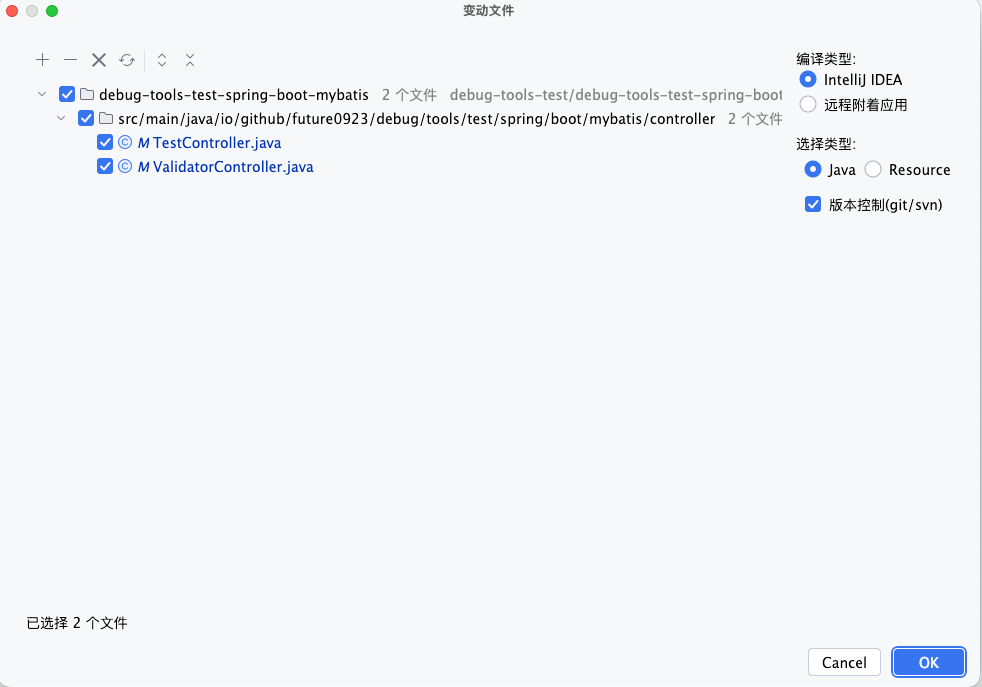
Use the toolbar to manage the current deployment scope:
| Button | Description |
|---|---|
| Manually add files to the hot deployment list. |
| Remove the selected files from the hot deployment list. |
 | Clear the current hot deployment list. |
 | Rescan files based on the current file type and Version Control (git/svn) settings. |
 | Expand the change tree. |
 | Collapse the change tree. |
Deployment options determine the file type and how files are processed:
| Option | Description |
|---|---|
| IntelliJ IDEA Compile | IDEA compiles the selected Java files locally, then sends the compiled .class files to the target application. Inner classes are sent together with the outer class. |
| Remote Attached Application Compile | Send selected Java source files to the target application, then the attached application compiles and hot deploys them. |
| Java Type | Deploy .java files under Java source roots such as src/main/java. |
| Resource Type | Deploy resource files under resource roots such as src/main/resources. Resource files are written to the target application's watched resources directory by relative path from the resource root. |
| Version Control (git/svn) | When selected, Java or Resource files are read from VCS changes. When cleared, files are scanned by modification time. |
The main area is a change tree. Files are grouped by project-relative path and marked with A, M, or D for added, modified, or deleted.
If Version Control (git/svn) is enabled, double-click a file to view the diff.
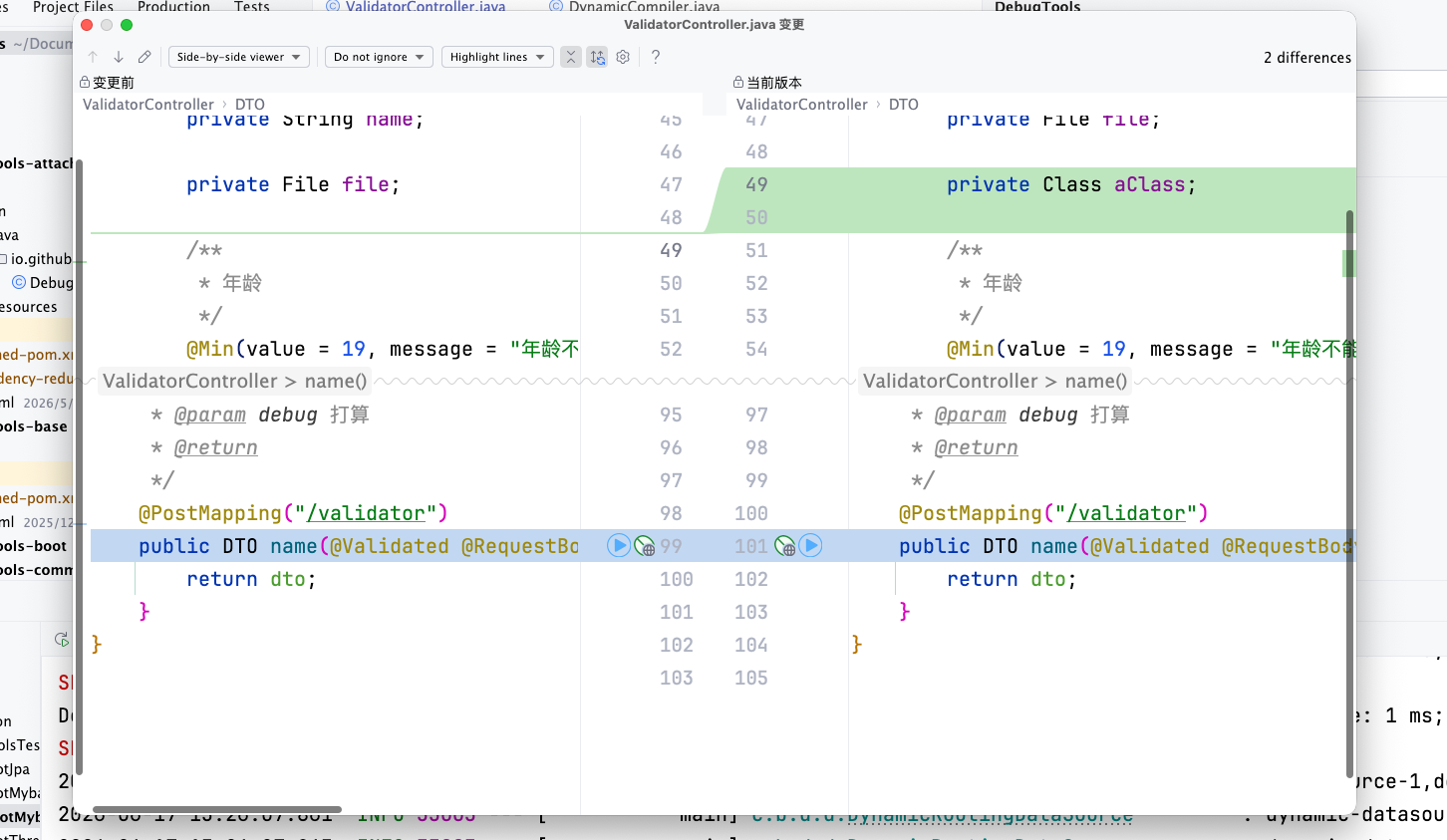
After confirming the file list and options, click OK. Java files are sent to the target application's extraClasspath directory and trigger class redefinition. Resource files are sent to the target application's watchResources directory.
The result is displayed in IDEA's Run tool window. The tab title is Remote Deploy Result; when multiple applications are connected, the title also includes the application name.

TIP
- Hot reloading changed files through hot deployment is only supported after the application is attached.
- When using remote attached application compilation for Java files, the target application must be started with a JDK, not only a JRE.
- If the window reports that it failed to get the default class loader, select a default ClassLoader on the target connection first. For applications with multiple class loaders, make sure the selected class loader is the one that actually loads the business classes.
4.2 Single file remote compilation
Open the context menu in a Java source file editor or project tree, then click Remote Compile "xxx.java" to Hot Deploy. The plugin saves the current file, sends the source code to the attached target application, and the target application compiles and hot deploys it.
If the current project is connected to multiple applications, the plugin asks you to choose the target connection first. The request uses the ClassLoader currently selected on that connection card.
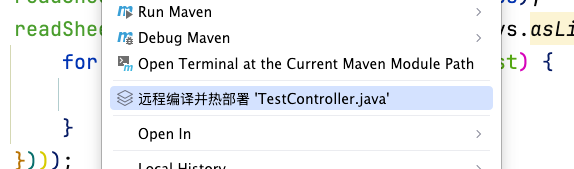
After hot deployment completes, the result is printed in IDEA's Run tool window. The tab title is Remote Deploy Result; when multiple applications are connected, the title also includes the application name.

TIP
- Hot reloading of changed files through hot deployment is only supported after the application is attached
- When using remote dynamic compilation, the attached application must be started through JDK, not JRE.
4.3 Single Resource File Deployment
Starting with 5.3.0, open the context menu in the editor or project tree for a non-Java file such as XML, HTML, FTL, YAML, or Properties, then click Deploy 'filename' to remote. The current file is sent using its path relative to the source or resource root.
If several applications are connected, select the target connection first. The request uses that connection's default ClassLoader and writes to its first watchResources directory; Windows uses watchResourcesWin.
See Resource File Hot Reload and Deployment for the complete flow, destinations, and conditions for changes to take effect.