
Execute Groovy Script
Groovy scripts run inside the target JVM. They can access Java classes in the target application, Spring Beans, and the built-in functions provided by DebugTools. Before running a script, attach locally or connect remotely, then select an available default ClassLoader on the connection card.
Pay attention to the ClassLoader
Groovy scripts use the default ClassLoader selected for the current connection. If the target application has multiple class loaders, choose the one that can load business classes and the Spring container. Choosing the wrong one may cause classes, Beans, or configuration values to be unavailable.
1. Open the Groovy Console
On the DebugTools connection management page, open the more menu on the target connection card and click Groovy Console.
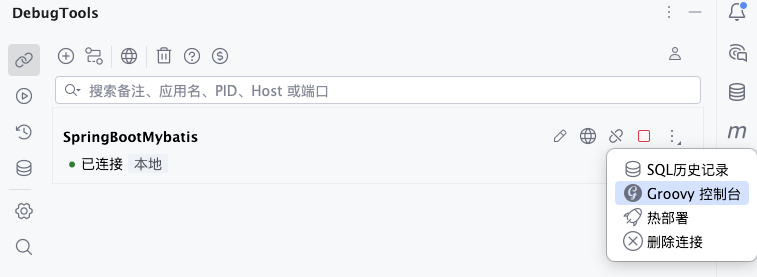
DebugTools creates or opens a Groovy Scratch file under Scratches and Consoles -> Debug Tools Plugins -> groovy. The file name is generated from the connected application name, such as SpringBootMybatis.groovy.
When the file is created for the first time, DebugTools writes the connection identifier at the top:
// DebugTools-Connection-Id: ...This identifier binds the current Groovy file to the target connection. Do not delete or manually modify this line during normal use. If the file already exists, DebugTools only reopens it and does not overwrite your script content.
2. Write the Script
Write the script in the opened .groovy file. It is a standard Groovy file, so IDEA provides Groovy syntax support, project classes, and import suggestions.
For example, read the target Spring application's port configuration:
gsc("server.port")Common built-in functions include:
| Function | Description |
|---|---|
gi / getInstances | Get instances of the specified Class from the target JVM. |
gb / getBean | Get a Bean from the target Spring container. |
rb / registerBean | Register a Bean in the target Spring container. |
urb / unregisterBean | Unregister a Bean from the target Spring container. |
gActive / getSpringProfilesActive | Get the currently active Spring Profiles. |
gsc / getSpringConfig | Get Spring configuration from the target application. |
For complete usage, see Groovy Built-in Functions.
3. Run the Script
Open the context menu in the current Groovy file and click Run Current Groovy Script 'xxx.groovy'.
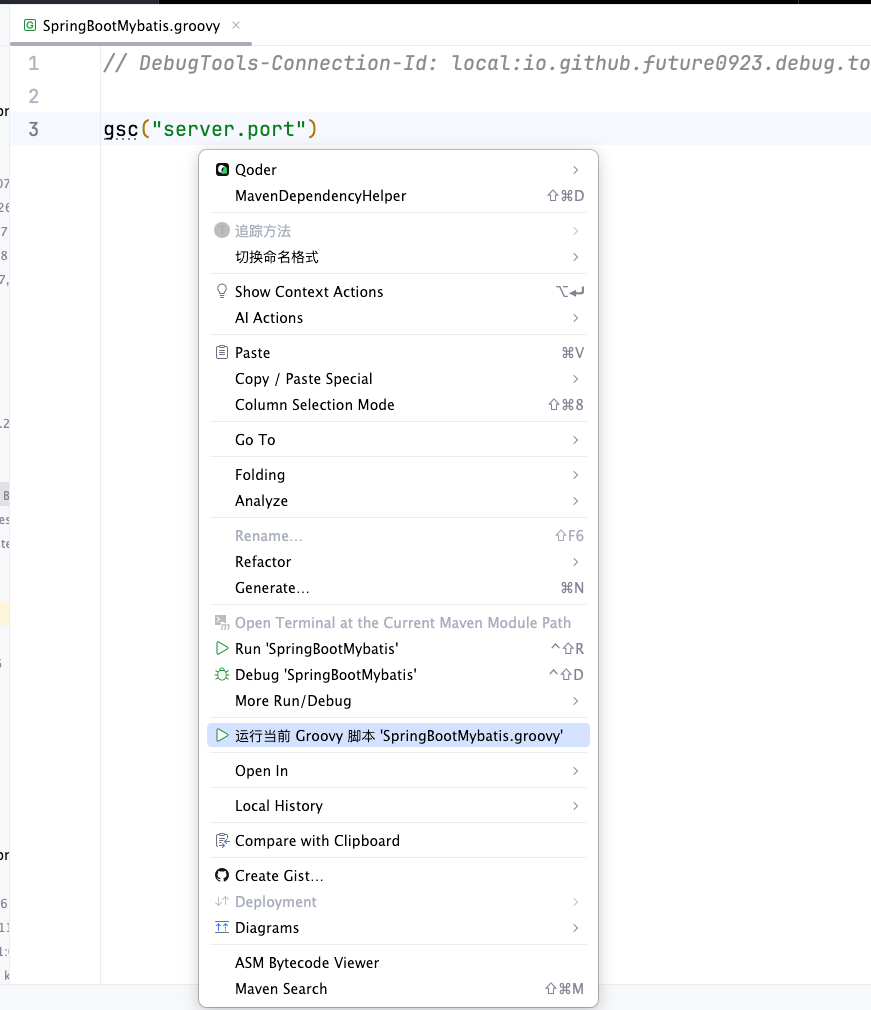
When running, DebugTools first saves the current file, then sends the full script content, connection identifier, and default ClassLoader identifier to the target JVM. The target JVM executes the script with the DebugTools Groovy base class, so you can directly call built-in functions such as gsc, gb, and gi.
If the current file has no connection identifier:
- When there is only one connection, DebugTools uses that connection directly and binds it to the current file.
- When there are multiple connections, DebugTools asks you to choose the connection for running the script.
- When there is no available connection, go back to the connection management page and reopen
Groovy Consolefrom the target connection card.
4. View Results
After execution completes, the result appears in IDEA's bottom Run tool window. The title format is Groovy Result - ApplicationName.
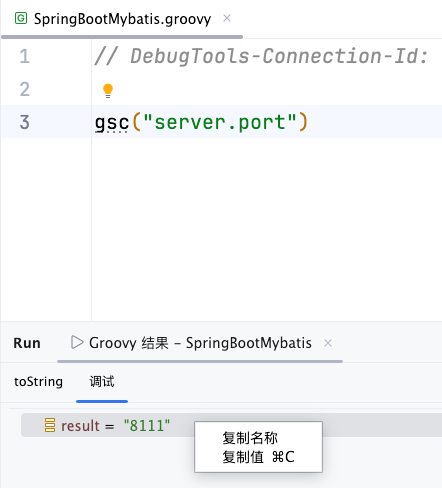
Result display rules:
| Result type | Display |
|---|---|
null | The toString tab shows NULL. |
| Primitive values, strings, and other simple values | The toString tab shows the converted text. |
| Object | The toString tab shows the object's toString(), and the Debug tab can expand the object structure. |
| Exception | The exception stack is shown, so you can continue checking the script, parameters, or ClassLoader. |
If you need to inspect object fields, switch to the Debug tab and expand the object. If you only need to copy the returned value, use the copy action on the result node.
5. Debug Scripts with Breakpoints
5.3.0 adds Debug Current Groovy 'xxx.groovy'. The script still runs inside the selected DebugTools target JVM, while IDEA Java Debugger provides breakpoints, variables, and stepping.
Before Debugging
- Enable the IDEA Groovy plugin and upgrade both DebugTools and the target Agent to 5.3.0.
- Establish a DebugTools connection and select a default
ClassLoader. - Connect an IDEA Java debugger session to the same target JVM. Use ordinary Debug or DebugTools Hotswap startup. For remote targets, configure JDWP and connect through IDEA Remote JVM Debug first.
- Keep the debugger session running. If it is already paused at another breakpoint, resume it first.
- Ensure the DebugTools HTTP port is reachable. The plugin uses it to confirm the target JVM identity.
Attaching the DebugTools Agent does not establish a Java debugger session. Both connections must point to the same JVM. With several applications under debugging, the plugin matches by target JVM identity rather than the currently selected Debug tab.
Run the Debug Action
- Open the Groovy Console from the target connection and write a script.
- Set a breakpoint on an executable statement.
- Open the current file's context menu and click
Debug Current Groovy 'xxx.groovy'. - When the breakpoint is hit, inspect variables, expressions, and the call stack in IDEA's Debug tool window. Step through or resume execution as needed.
- When the script finishes, view its Groovy result as described above.
For example:
def port = gsc("server.port")
def profiles = gActive()
return [port: port, profiles: profiles]
Set a breakpoint on def profiles to inspect the port value already read.
Keep the script unchanged while debugging is being prepared. After editing it, run the debug action again so breakpoints use the current source version. Old dynamically generated script classes are not treated as the new source version.
Common Messages
| Message | Action |
|---|---|
| Start or attach the IDEA Java debugger to the target application | Establish a Java debugger session. Resume it if it is paused. |
| The selected DebugTools application has no matching IDEA Java debug session | Confirm both connections point to the same JVM. Reconnect after the target restarts. |
| This agent does not support Groovy debugging | Replace it with the 5.3.0 Agent, restart the target, and reconnect. |
| Enable the IntelliJ Groovy plugin | Enable Groovy in IDEA plugin settings. |
| The script changed while preparing the debugger | Stop editing and run the debug action again. |
When you do not need breakpoints, use Run Current Groovy; a Java debugger session is not required.