
Installation instructions
The DebugTools 5.3.0 plugin requires IntelliJ IDEA 2023.3 or later (build 233). MCP tools also require IDEA with an enabled MCP Server. See Using IDEA MCP.
1. Install the plugin
1.1 Marketplace store (recommended)
Open
IDE Settingsand selectPluginsSearch
DebugToolsinMarketplaceand clickinstallRestart the application
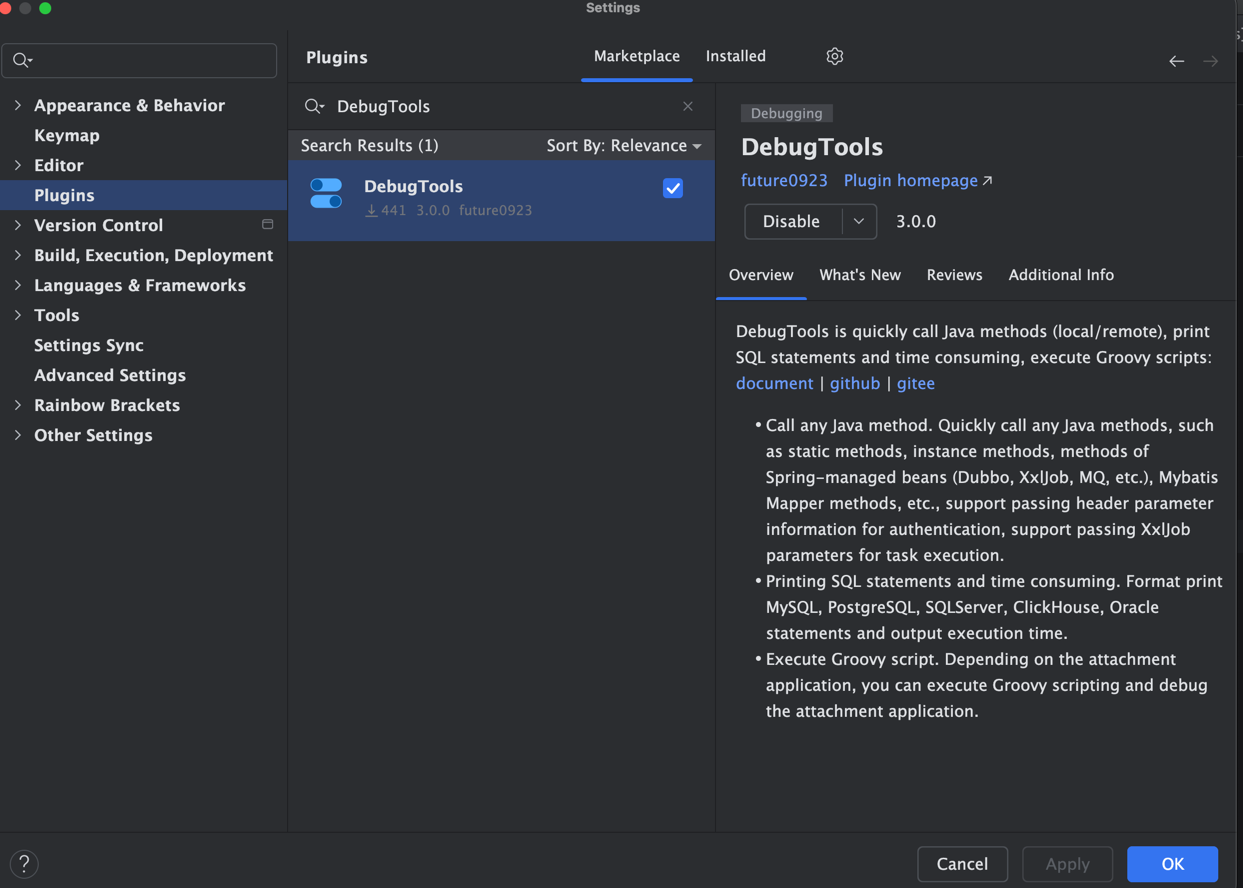
1.2 Self-installation
https://plugins.jetbrains.com/plugin/24463-debugtoolshttps://download.debug-tools.cc/DebugToolsIdeaPlugin.zipgit clone https://github.com/future0923/debug-tools.git
cd debug-tools
# Maven packaging needs to use `java17+` version to build
mvn clean install -T 2C -Dmaven.test.skip=true
# Agent artifacts are under debug-tools/dist.
cd ..
git clone https://github.com/future0923/debug-tools-idea.git
cd debug-tools-idea
# Complete Maven install above first; the plugin needs the same-version common dependency.
# The current ideVersion=2026.1 selects a Java/Kotlin 21 toolchain. Prepare JDK 21.
./gradlew clean build -Pkotlin.daemon.jvmargs=-Xmx2g
# The plugin ZIP is under build/distributions and copied to dist by build.
# DebugTools-5.3.0.ziphttps://github.com/future0923/debug-tools/releaseshttps://gitee.com/future94/debug-tools/releases1.3 Upgrade to 5.3.0
Restart IDEA after upgrading the plugin. For remote applications or applications that preload the Agent, replace debug-tools-agent.jar on the target machine with 5.3.0, restart the JVM, and reconnect.
Groovy breakpoint debugging and recent logs/SQL queries require new Agent endpoints. Upgrading only the plugin does not add those capabilities to an older target JVM. The automatic class file watching setting also takes effect only after an application restart.
2. Install JDK
Specific JDK support is only required when using the hot-deploy and hot-reload functions.
To simplify the hot deployment installation steps, Linux supports one-click installation, using the following command:
wget https://download.debug-tools.cc/install/linux-install.tar.gz -O linux-install.tar.gz && tar zxf linux-install.tar.gz && cd linux-install && ./install.shInstallation location.
- jdk:
/usr/local/java - debug-tools:
/usr/local/debug-tools
2.1 JDK 8
2.1.1 Use the packaged JDK package directly (Recommend)
Download from github
https://github.com/future0923/debug-tools/releases/tag/dcevm-jdk-1.8.0_181
DebugTools official website download
TIP
- Currently, there is no native JDK for the DCEVM chip on Mac OS. The JDK provided above is modified using
adopt jdkand is still essentially an x86 architecture JDK. - If your project allows, we strongly recommend using JetBrains Runtime 11+.
2.1.2 Self-installation
Windows/Mac OS (intel)
Download the corresponding version of the .jar file. Currently only the following versions of JDK are supported, please select the corresponding version.
Run the corresponding java -jar DCEVM-8uXX-installer.jar file, find the corresponding version, and click the Install DCEVM as altjvm button.
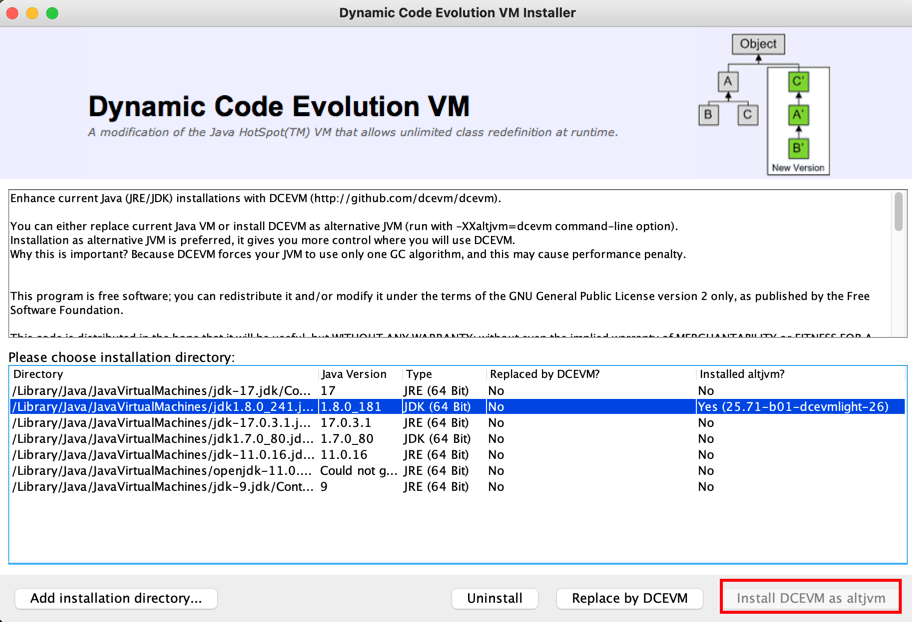
Linux
If you enter java -XXaltjvm=dcevm -version, you will get the following prompt
Error: missing `dcevm' JVM at `/home/java/jdk1.8.0_291/jre/lib/amd64/dcevm/libjvm.so'.
Please install or use the JRE or JDK that contains these missing components.
Download the corresponding version file and rename it to libjvm.so and put it in the directory extracted above.
| java version | download by debug tools | download by github |
|---|---|---|
| >= 1.8.0_181 | libjvm181.so | libjvm181.so |
| 1.8.0_172 | libjvm172.so | libjvm172.so |
| 1.8.0_152 | libjvm152.so | libjvm152.so |
| 1.8.0_144 | libjvm144.so | libjvm144.so |
| 1.8.0_112 | libjvm112.so | libjvm112.so |
| 1.8.0_92 | libjvm92.so | libjvm92.so |
| 1.8.0_74 | libjvm74.so | libjvm74.so |
| <= 1.8.0_66 | libjvm66.so | libjvm66.so |
2.2 JDK 11
JetBrainsRuntime
Using JetBrainsRuntime JDK can support hot deployment/hot reload.
Please download the SDK version with JBR with JCEF (DCEVM) or JBR with JCEF (fastdebug).
It is recommended to use the latest version 11_0_15-b2043.56
2.3 JDK 17/21/25
Using JetBrainsRuntime JDK can support hot deployment/hot reload.
Please download the SDK version with JBRSDK with JCEF.
For Java 17, we recommend using the latest version 17.0.14b1367.22
For Java 21, we recommend using the latest version
For Java 25, we recommend using the latest version,For example 25b176.4。
You can also download the JDK in Project Structure and select JetBrains Runtime (JCEF)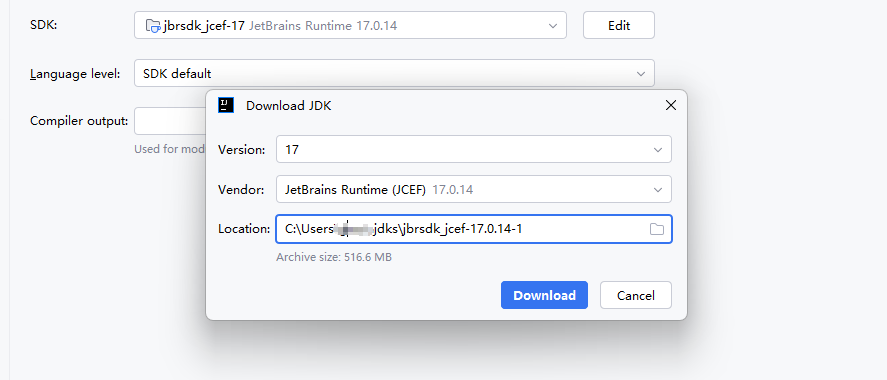
INFO
If the Apple system prompts that the JDK is damaged or the developer cannot be verified after downloading the JDK, you can enter sudo xattr -r -d com.apple.quarantine /$jdkPath, $jdkPath is your jdk directory